How to find repeat problems in inspection reports?
"I have a Google Form that is used to record routine inspections of equipment."- Google Docs Editors Community
Which forklift keeps failing its brake check? When routine equipment inspections go into Google Forms, reading responses one by one won't tell you, and a long Sheet of answers hides the pattern unless you write formulas for it. Formesign sends each signed inspection to a Google Sheet. Turn on a filter view, pick one issue and the machine that keeps coming up stands out. Each row also links to its signed document, so you know who did the check.
Let's start. Create your form in Google Forms, then import it and follow the steps below.
1. Import your inspection form
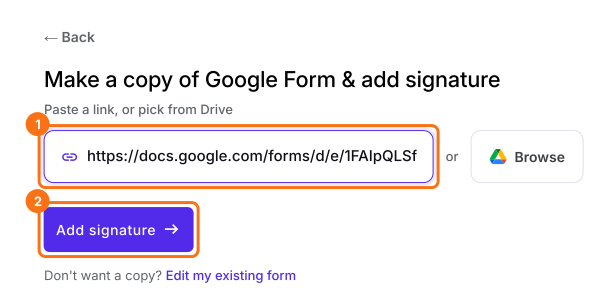
Publish your Google Form first or make one at form.new with your questions and click Publish. Click on Import your Google Form, click Import your Google Forms, paste its link (the form's address in your browser works) and click Add signature. Keep Simple signature and click Next. Choose the question it goes after and click Next. On Your signing link is ready, click Edit form.
2. Send your inspections to a Google Sheet
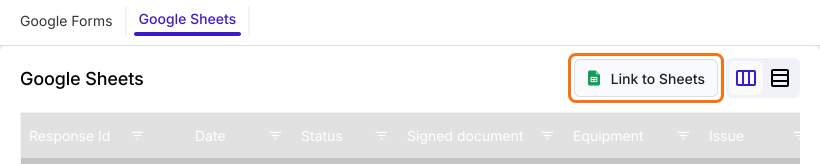
Click SHARE and send the link to whoever does the checks. Click RESPONSES, then Google Sheets and click Link to Sheets. Click Proceed, then View sheets and new inspections keep coming into the Sheet.
3. Turn on a filter view
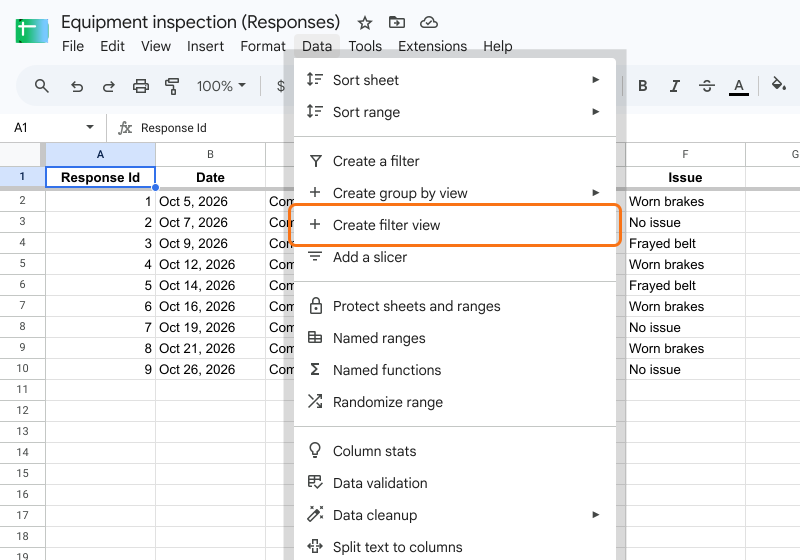
Click a cell in the Sheet, click Data, then Create filter view. Create a filter doesn't work here, because the linked Sheet is protected.
4. Pick one issue
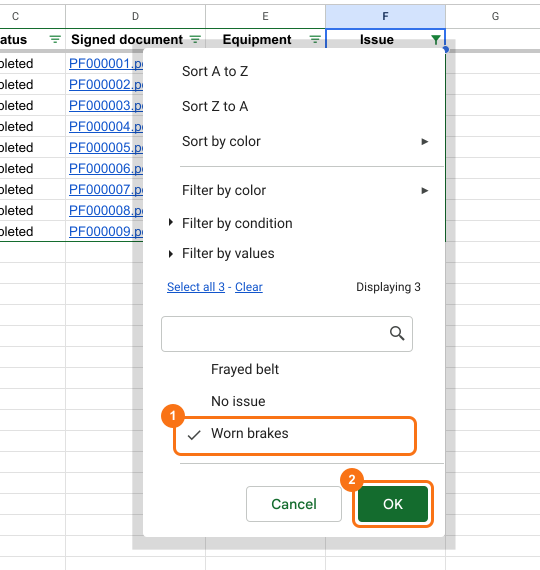
Click the filter button on the Issue column. Under Filter by values, click Clear, tick Worn brakes and click OK.
5. See which machine keeps failing
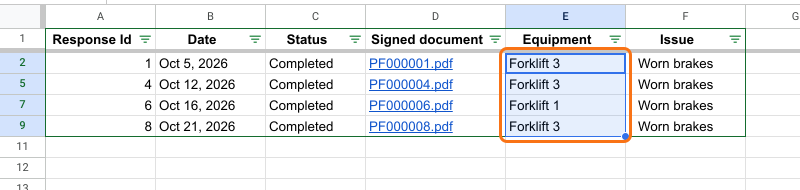
The rows that stay show each time that issue came up, with the date and the machine. Here Forklift 3 shows up three times, so fix that one first.
Summary
When inspections pile up as separate responses, repeat problems stay hidden until something breaks. With Formesign, every signed inspection goes to a Google Sheet that you can filter by issue to see which equipment fails most. Create your form in Google Forms, then import it and complete the steps above. If you have any questions, write to support.
Last updated: