How to fill in an intake form on a tablet?
"attempting to create intake paperwork to give to the patient"- Google Docs Editors Community
At a physician's front desk, some patients can't fill in intake paperwork on their own phone. A clipboard means someone retypes it later, and patients write out details your office already has. Google Forms can prefill a link for one patient at a time, but those details then show in the link. With Formesign, you make each patient their own prefilled link, open it on your tablet and hand it over. They check their details and sign with a finger, and the signed paperwork arrives with nothing to retype.
Let's start. Create your form in Google Forms, then import it and follow the steps below.
1. Import your intake paperwork
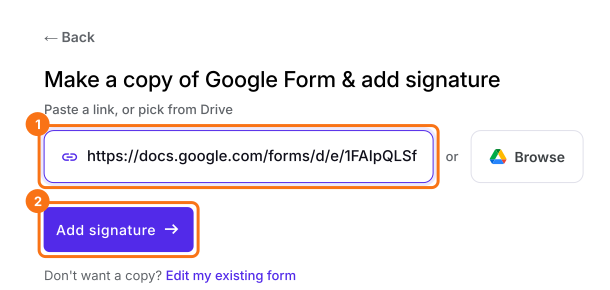
Publish your Google Form first or make one at form.new with a Patient name question and click Publish. Click on Import your Google Form, click Import your Google Forms, paste its link (the form's address in your browser works) and click Add signature. Keep Simple signature, so nobody has to sign in to Google on your tablet and click Next. Choose the question it goes after and click Next. On Your signing link is ready, click Edit form.
2. Make this patient's link
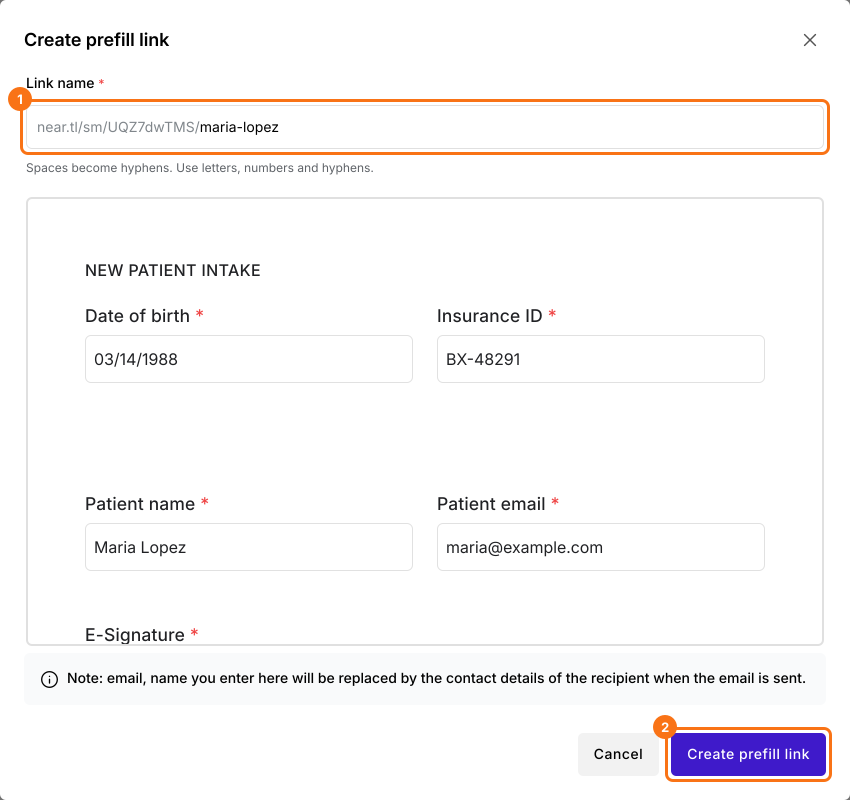
Click SHARE, click Create prefill links under More options, then Create new prefill. For each patient, type their name as the Link name, fill in what your office knows and click Create prefill link.
3. The patient signs on the tablet
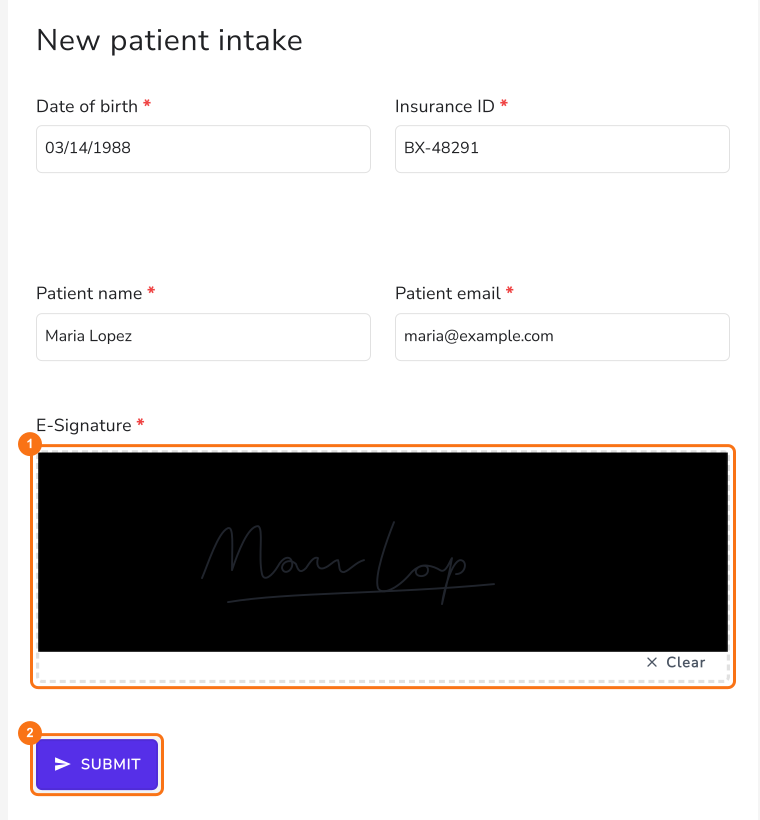
Click Copy link on that row, open it on the tablet and hand it over. The patient checks their details, which they can still change, signs with a finger and taps SUBMIT.
4. The signed paperwork reaches you
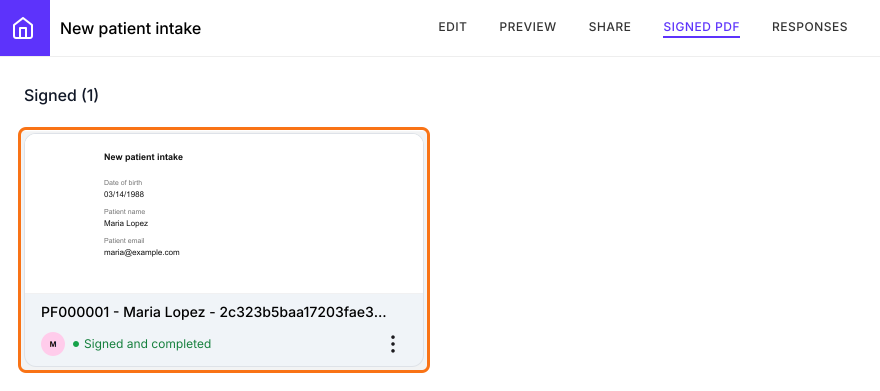
When the tablet says Your response has been recorded, take it back. The signed PDF is in your SIGNED PDF tab, so nobody retypes anything.
Summary
When people can't fill in a form on their own device, paper means retyping and a shared device means starting from blank. With Formesign, you open a prefilled link for each person on your own tablet, they check their details and sign and the signed copy comes straight to you. Create your form in Google Forms, then import it and complete the steps above.
Last updated: