如何分享 Google Forms 回應?
"我想把學校問卷的結果分享給校董們"- Google Docs Editors Community
您的團隊需要隨時都能看到回應,而不是您偶爾寄出的副本。在 Google Forms 中,要讓別人看到 Responses 分頁,就得把他們加到表單本身,成為編輯者,而編輯者也能修改您的問題、刪除回應。如果您的表單透過 Formfacade 放在網站上,請從 Formfacade 的 Responses 分頁在 Google Forms 中開啟表單,並在那裡分享。若要讓人只能閱讀、不能編輯,請在 Formfacade 將他們新增為 Viewers,或將連結的 Google Sheets 試算表以僅檢視方式分享。
在 Formfacade 中開啟您的表單,並依照下列步驟操作。如果您還沒有表單,請先建立您的表單。
如何分享回應?
- 在 Formfacade 中開啟您的表單,點選「Responses」分頁

- 如果您看到 Submit to Google Forms,請點選它並點選 Proceed,讓回應送到 Google Forms。按鈕會變成 View in Google Forms
- 點選 View in Google Forms。您表單的回應會在 Google Forms 中開啟

- 點選 Share 圖示
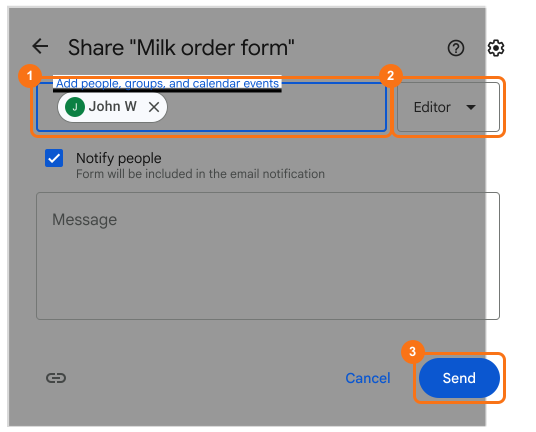
- 輸入電子郵件地址
- 將角色設為 Editor
- 點選 Send
⚠️ 重要
當您在 Google Forms 將使用者新增為協作者,他們可以依問題或依填答者檢視表單回應。這些使用者也能編輯 Google Forms 中的問題,並刪除回應。如果您只想提供檢視回應的選項,有三種方式。
您也可以在 Formfacade 將團隊新增為 Viewers,他們可以檢視回應 & 報表。請參閱如何與協作者分享您的表單?
摘要
最後更新: