如何下載 Google Forms 回應?
您想把 Google Forms 的回應放到 Excel 或其他工具中排序、加總或轉送。從 Responses 分頁一筆筆複製答案又慢又容易出錯。Google Forms 可以從更多選單把所有回應下載成 .csv 檔案,但下一筆回應一進來,這個檔案就過時了。如果您用 Formfacade 把表單放在網站上,可以從 Formfacade 的 Responses 分頁找到同樣的下載功能。如果想要隨時保持最新的副本,請改把回應連結到 Google Sheet。
在 Formfacade 中開啟您的表單,並依照下列步驟操作。如果您還沒有表單,請先建立您的表單。
如何下載回應?
- 在 Formfacade 中開啟您的表單,點選「Responses」分頁

- 如果看到 Submit to Google Forms,請點選它,再點選 Proceed,讓您表單的回應送到 Google Forms。只有在那之後提交的回應才會送到。

- 點選 View in Google Forms。您表單的回應會在 Google Forms 中開啟

- 點選更多 ⋮ 圖示
- 點選 Download responses (.csv)
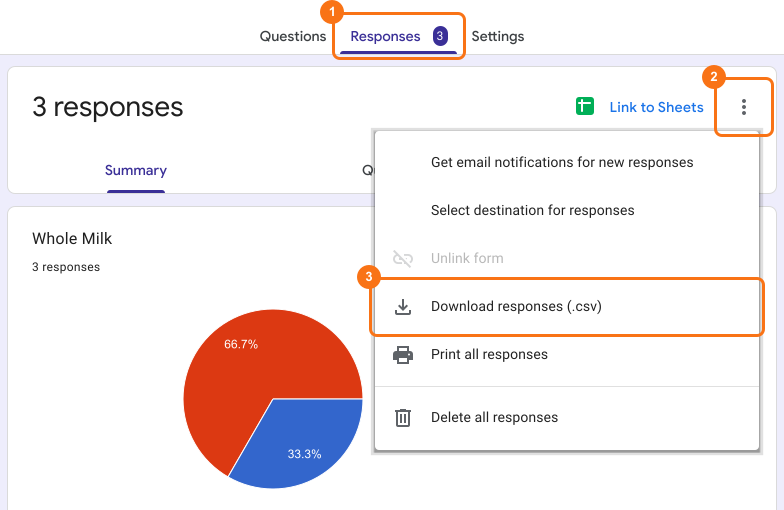
您會取得包含所有回應的 .csv 檔案。
摘要
最後更新: