Use AI - Evaluate your AI model
This is a common question from people who have trained an AI model. It is not much use until you know how good its answers are. Reading the training data does not tell you that and writing code just to try one message takes time. With Promptrepo, you can test your model in a form and see its answer right there. Even better, when you are happy with it, you can call it as an API from your app, website or workflow.
Let's start. Create your AI model and follow the steps below.
Once you have trained and deployed your fine-tuned AI model, you can easily test it using a form or API calls.
Create your model
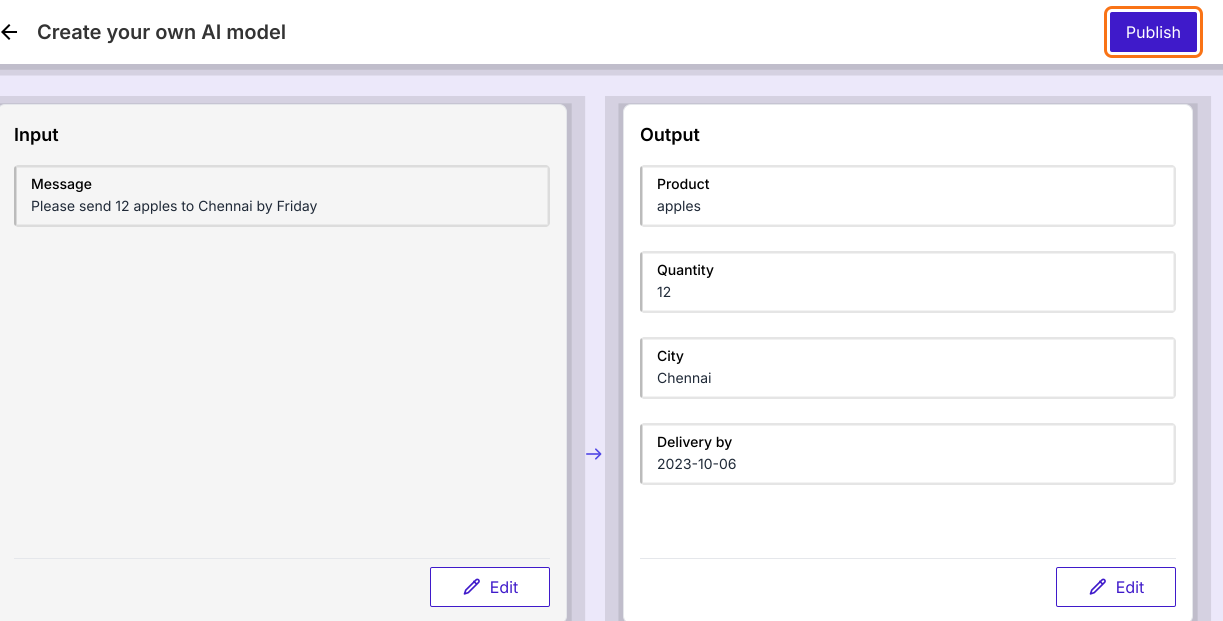
- Once you click on Create your AI model, you will land on the "Create your own AI model" page
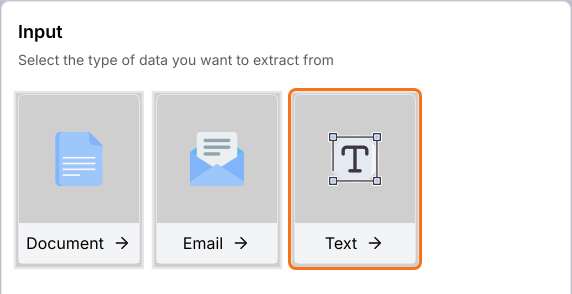
- Under Input, click on Text. You can also click on Document or Email.
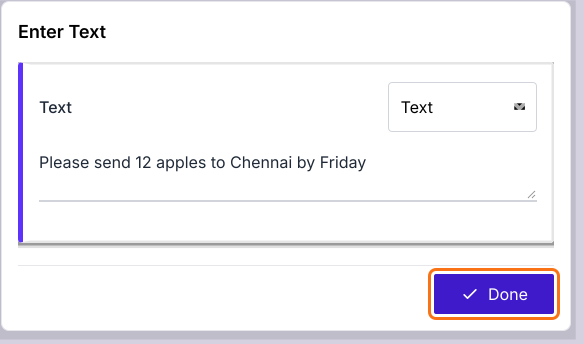
- Enter one example in the box: Please send 12 apples to Chennai by Friday
- Click Done. It takes about 20 seconds and the Output on the right will be filled in by AI.
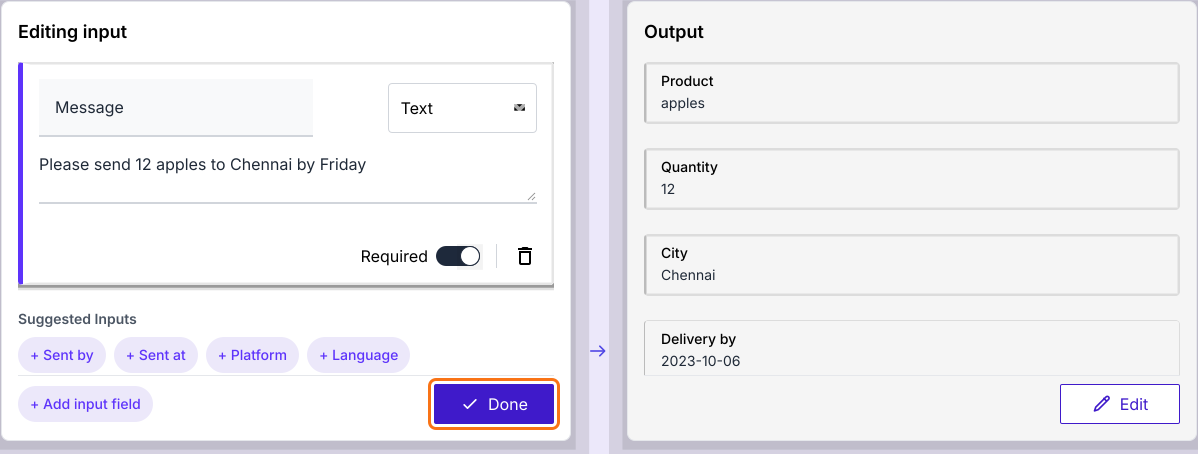
- "Editing input" will be displayed. Click + Add input field if you need another input.
- Click Done
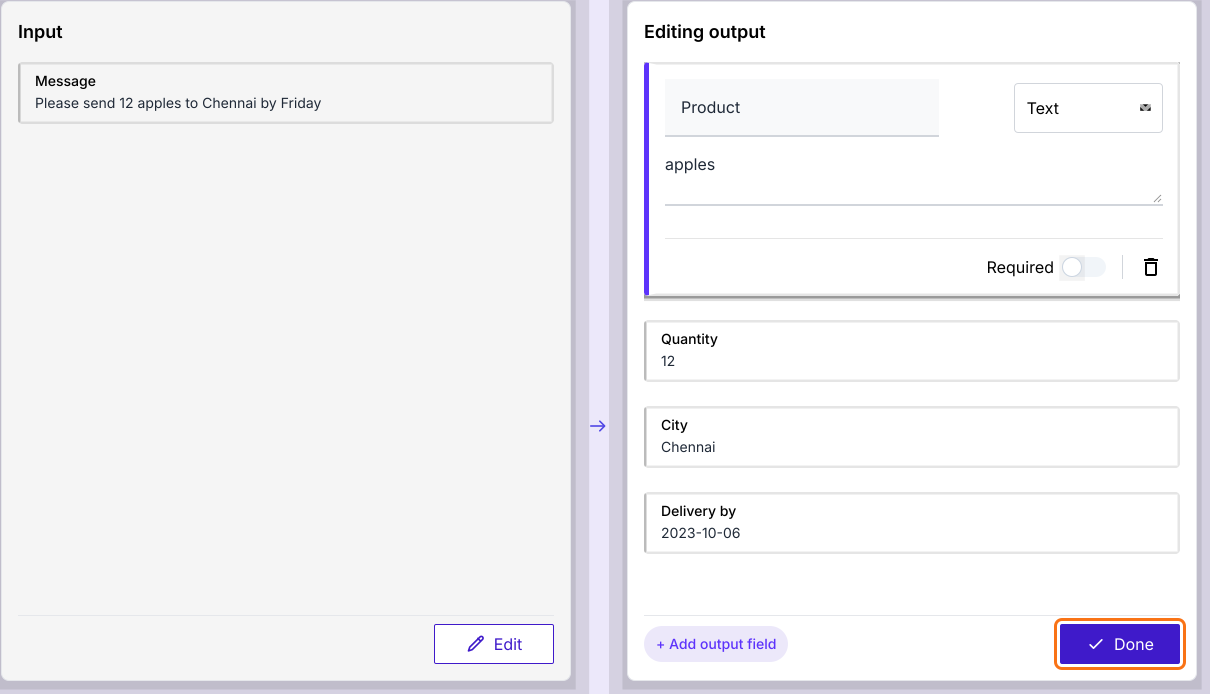
- "Editing output" will be displayed. You can select Text, Number, Enum or JSON for each output.
- Click Done
- Click Publish
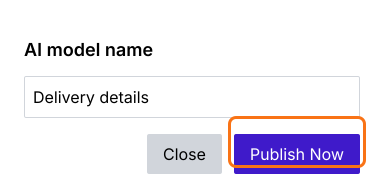
- Enter the AI model name and click Publish Now
- "Model is ready!" will be displayed. Click Proceed.
Use as form
- On your model's page, click PREVIEW

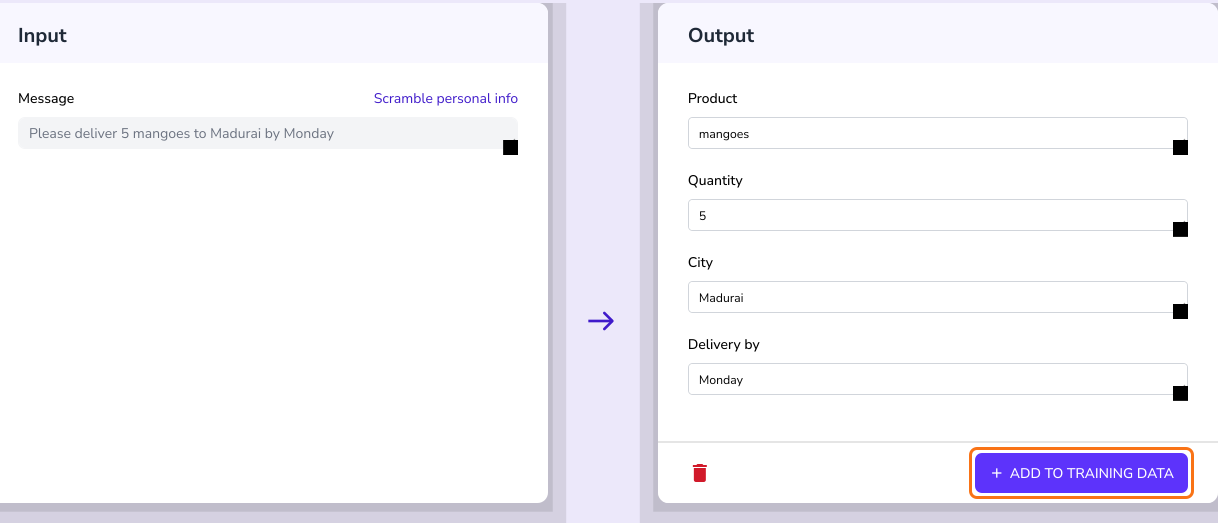
- Input the data or click Load example
- Click PROCEED. Enter the data first, because PROCEED with an empty box shows an error.
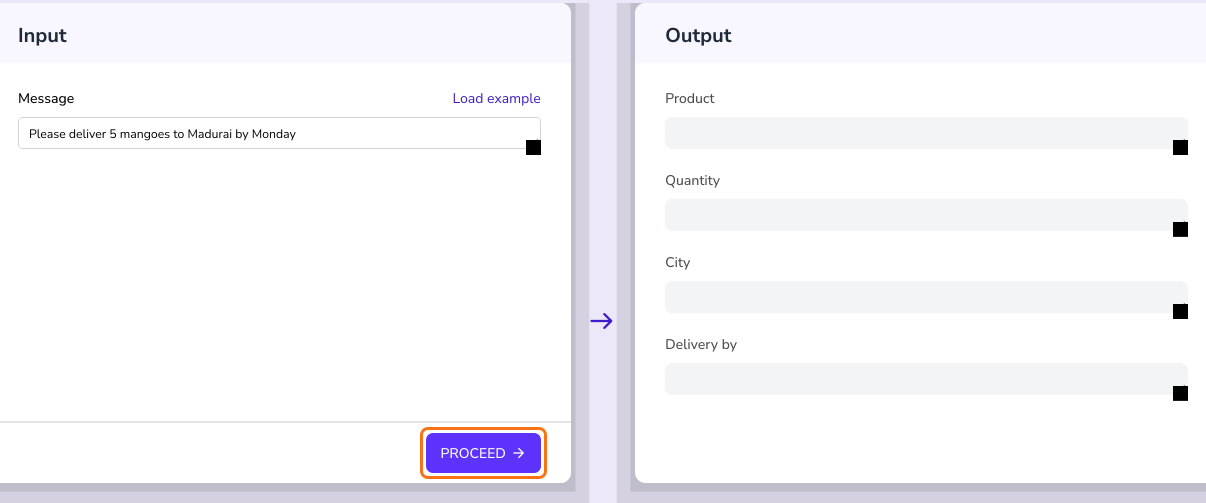
The model's output will be displayed. To keep a good result, click ADD TO TRAINING DATA.
Use as API
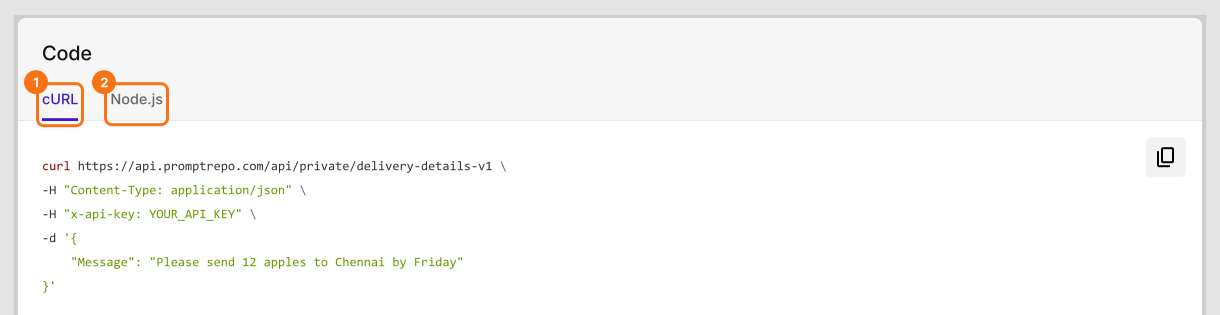
- On your model's page, click CODE

- Select cURL or Node.js
- Click to copy the code and integrate it to test as an API. The code already has your own API key, shown here as YOUR_API_KEY, so keep it private.
Summary
If you have trained a model, you need to test it before you use it. With Promptrepo, you open PREVIEW to try it in a form or CODE to call it as an API. Create your AI model and complete the steps above. If you have any questions, write to support.
Last updated: